
This guide is compatible with and was written using version 16.78.3 of Microsoft Word.
It can be difficult to focus on certain tasks. This is especially the case when these tasks are being done on a computer (such as typing an essay, report, story, etc.), since there is a myriad of distractions a mere click away that try to grab at our attention. One common method to help eliminate distractions is by using an “out of sight, out of mind” methodology: if all you can see is the task at hand, you likely will not be distracted as easily.
Microsoft Word has a feature that is quite useful when one needs to simply focus on typing, and does not need to worry about formatting, or fonts, or highlighting, or text color. This feature is aptly named “Focus Mode”. Focus Mode, essentially, eliminates all other distractions- both those present in Word itself as well as those on your computer- and attempts to provide a more conducive digital atmosphere for typing.
How do I Enable Focus Mode?
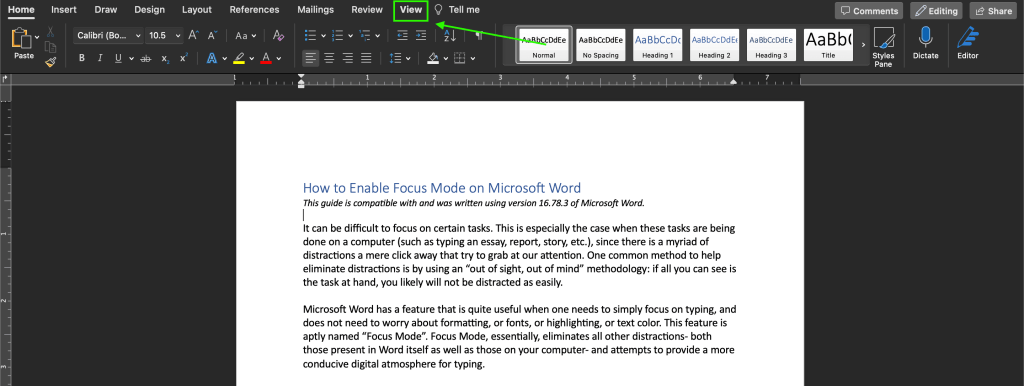
Enabling Focus Mode on Microsoft Word is simple. As a note, the images below display Microsoft Word in dark/night mode with the default page color being white, so your menus and options may look a little different depending on your settings. First, you will want to navigate to the “View” menu from the top bar on the Microsoft Word screen, as shown below.
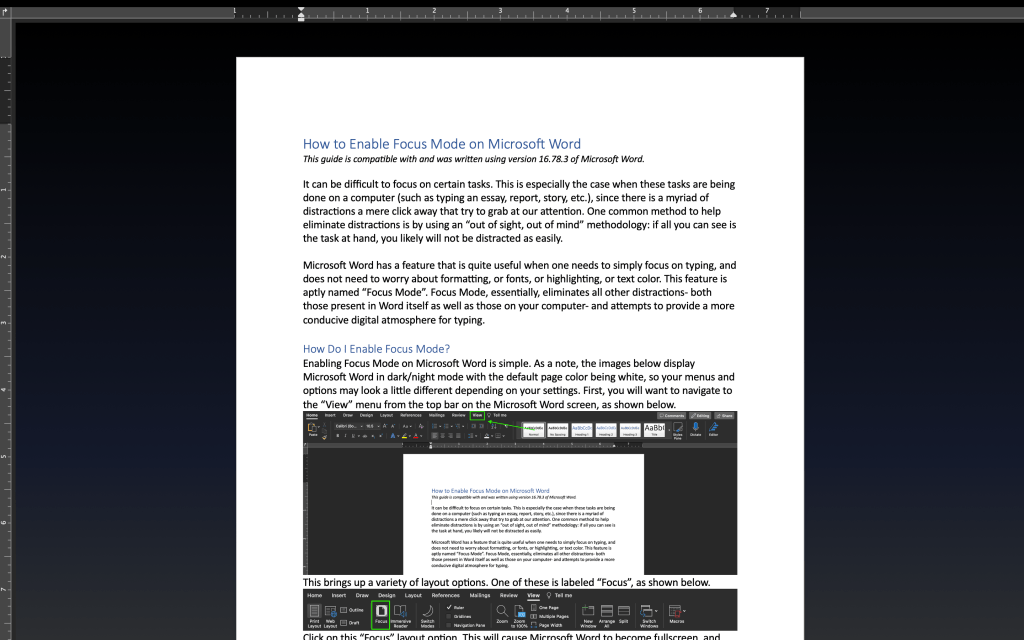
This brings up a variety of layout options. One of these is labeled “Focus”, as shown below.

Click on this “Focus” layout option. This will cause Microsoft Word to become fullscreen, and the menu bar at the top will slide away.
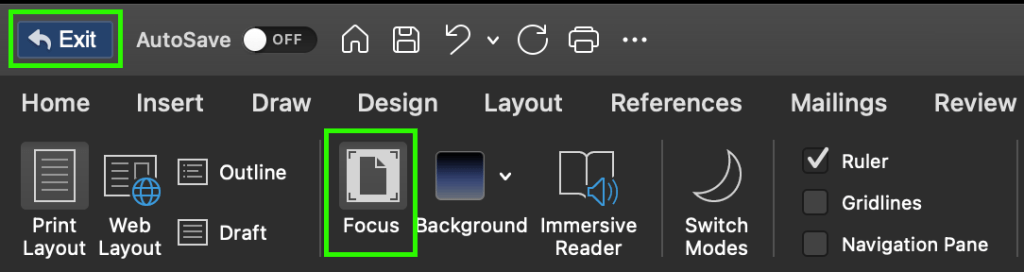
If the ruler bars are still on the screen and you wish to remove those as well, simply hover your mouse at the top of the screen, which will cause the menu bar to reappear, and uncheck the “Rulers” box, as shown below.

While in Focus Mode, you can still perform various hotkey functions (such as copying, pasting, saving, or any macros installed on the machine).
Exiting Focus Mode
To exit Focus Mode, you can hit the Escape/ESC key on your keyboard. Alternatively, you can hover your mouse at the top of the screen, causing the menu bar to reappear, and click the “Exit” option. Finally, you can also click on the Focus Mode button in that same menu.
Customizing Focus Mode
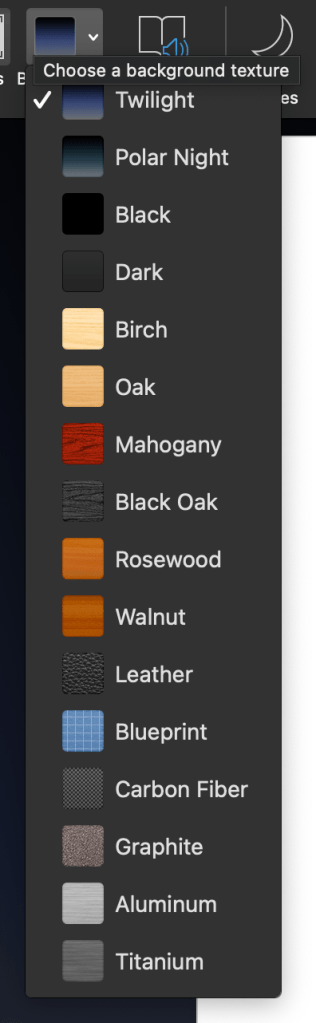
Focus Mode allows for the background behind your document to be customized. To customize your background, enable Focus Mode, and simply hover your mouse at the top of the screen to bring down the menu bar. Next to the Focus Mode option will now be a Background option.

Clicking this option displays a dropdown menu with a variety of backgrounds that can be used while in Focus Mode.
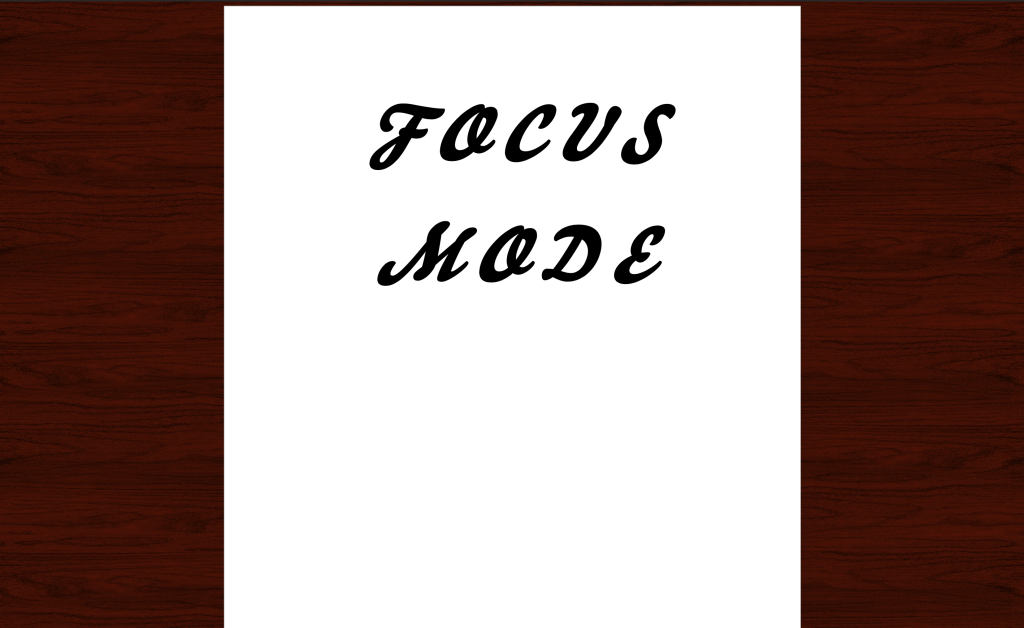
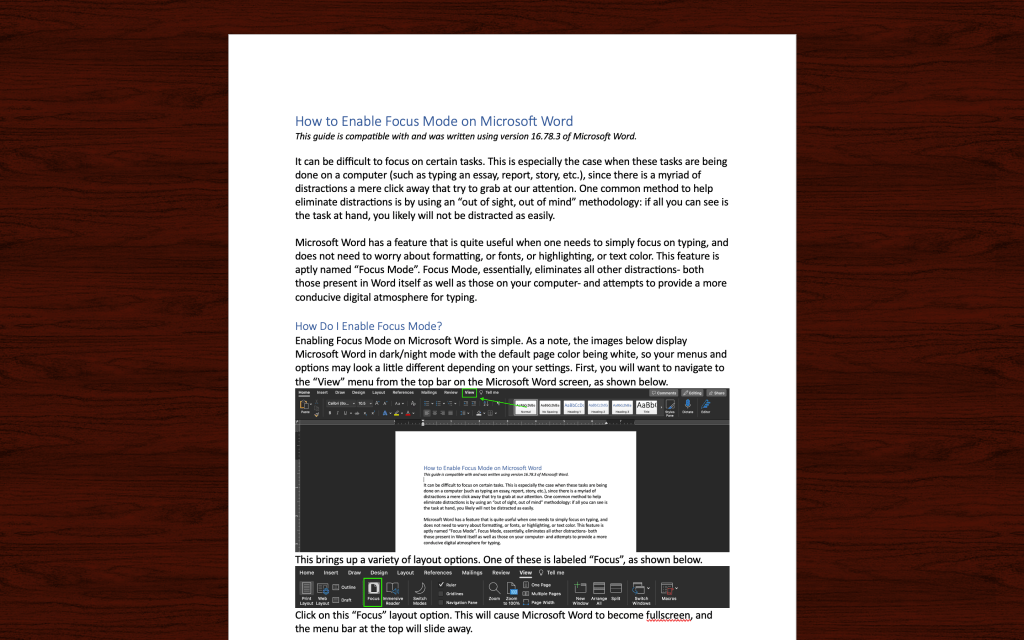
For example, the user has selected the “Mahogany” option in the image below.



 The H.A.C.K.E.R. Project
Leave a comment