
If you have ever visited a website, you have interacted with HTML; thus, by reading this article, you are actually interacting with HTML! Hypertext Markup Language (HTML) is a way in which websites can be built. While some disagree on whether or not HTML belongs in the category of a programming language, it is still a useful language to learn about, especially if one wants to go into web development.
How is HTML Used?
HTML is an extremely useful language and is the “the standard markup language for creating Web pages” (W3Schools). Generally, HTML “consists of a series of elements” which describe “the structure of a Web page” (W3Schools). Once an HTML document is created and published, it then must be read and translated by a web browser. The primary purpose “of a web browser (Chrome, Edge, Firefox, Safari) is to read HTML documents and display them correctly” (W3Schools). Imagine HTML as a recipe for a cake. The chef (the website developer) writes the recipe (the HTML) for the cake (the webpage). Your web browser reads this recipe (the HTML), prepares the cake (the webpage), and then gives it to you (displays the webpage on your screen)!
The below video produced by W3Schools also provides a great introduction to what HTML is and how it is used.
Brief History of HTML
HTML was first “designed by the British scientist Sir Tim Berners-Lee at the CERN nuclear physics laboratory in Switzerland during the early 1990s” (Hemmendinger). At the time, Berners-Lee was working on creating the World Wide Web, which is how we access many of our online resources today.
Specifically, in 1989, “Berners-Lee drew up a proposal for creating a global hypertext document system that would make use of the Internet” (Hemmendinger). At the time, the Internet was primarily utilized by scientists, research facilities, and, in some instances, universities. Unlike the Internet of today, it was very limited. There were no social media platforms, streaming services, or many of the things that make the Internet useful to us today. Rather, the Internet was meant to be a way in which research could be shared among scientists. Unfortunately, this was tedious, since the primary means of communication was to “exchange e-mail[s] constantly” (Hemmendinger). Thus, Berners-Lee wanted to find a way “to provide researchers with the ability to share their results, techniques, and practices” in an easier fashion; thus, HTML was born (Hemmendinger).
It was around this time that Berners-Lee “wrote the first version of the “HyperText Markup Language” (HTML), the document formatting language with the capability for hypertext links that became the primary publishing format for the Web” (W3C Authors). This allowed for the creation of webpages, which could be utilized to store and share data. More importantly, however, was the ability to link together webpages. By allowing links (aka hypertext) to be part of a webpage, Berners-Lee enabled the scientific community to string together multiple webpages for ease of use.
Since then, HTML has gone through many updates and changes; the most recent version, HTML5, was first publicly drafted in 2008 (W3Schools).
Notable Features of HTML
There are many notable features of HTML.
Hypertext
As the name implies, HTML is a hypertext language. Hypertext “simply means ‘Text within Text’” (JavaTpoint). This sentence is an example of hypertext. While the text on the screen displays one thing, it actually contains additional information: the link to the home page of The H.A.C.K.E.R. Project. When “you click on a link which brings you to a new webpage, you have clicked on a hypertext. HyperText is a way to link two or more web pages (HTML documents) with each other” (JavaTpoint).
Markup
In addition, HTML is a markup language. This means that HTML is “used to apply layout and formatting conventions to a text document. Markup language makes text more interactive and dynamic. It can turn text into images, tables, links, etc.” (JavaTpoint). Instead of simply being normal words on a webpage, HTML allows you to create a variety of neat and useful visual features.
For example, HTML allows the embedding of image onto webpages, such as this image of the HTML5 logo below.
You can also use HTML to format your text into a table or other structure, such as the table below.
| Location | Number of Dogs | Number of Cats |
| House A | 3 | 1 |
| House B | 2 | 2 |
Element-Based
HTML is able to indicate to a web browser the content of a webpage through being element-based. An element “is defined by a start tag, some content, and an end tag” (W3Schools). Everything on this very webpage is contained in an element in HTML! Each paragraph of text is contained in a paragraph element, the table above utilizes table elements to identify how many rows and columns it should have, and the headings for each of the sections of this article also make use of HTML elements to make them stand out. In most cases, elements require both a beginning and end tag (such as a paragraph), but there are some tags that do not need an end tag (such as a line break).
Being element-based also allows for web developers to better customize the look and feel of a website. Generally, this is done through the use of another “language” called Cascading Style Sheets, or CSS. CSS is used to define the colors on a webpage, the size of text, the borders around images, and many other visual effects. JavaScript is another language used to make HTML more dynamic and useful. JavaScript allows for functionality behind a webpage; for example, JavaScript can be used to log a user in to a webpage whenever the “login” button is clicked.
Platform Independent
Finally, HTML is platform independent. This means that HTML can be edited and used on any device with little to no issue. In fact, you do not even need to have a special program or software to write HTML code! All you need is a basic text editor, which the majority of computers or laptops already have included as part of their basic software. Once you have written your HTML in a text editor, simply save the document with “.html” at the end, and that should convert it into a usable HTML document. Or, if using a word processor, there may be a built-in option to save your document as an HTML document.
Examples of HTML Code
In order to write an HTML document, there are specific core elements that need to be included. These elements- especially the <!DOCTYPE html> tag- are what tell the web browser that it is reading an HTML document, allowing it to process it correctly into a webpage. In addition, they help to provide structure to the webpage. The <html> element indicates what parts of the document are to be processed into the webpage. Specifically, the <head> element contains data regarding the website, such as the title of the webpage or the link to a CSS document, and the <body> element contains the actual website content itself.
<!DOCTYPE html>
<html>

     <head>

     </head>

     <body>

     </body>

</html>
To add a paragraph of text, the <p> element is used. To include a webpage title, the <title> tag is used. Headings are added with the heading tags. There are multiple heading tags, ranging from <h1> to <h6>. Generally, it is a best practice to indent to show which elements are contained within other elements.
<!DOCTYPE html>

<html>

     <head>

	<title>Welcome</title>

     </head>

     <body>
	<h1>WELCOME</h1>
	<p>Hello! Welcome to my website!</p>

     </body>

</html>

Comments in HTML are a useful way to add documentation to an HTML document. This makes it easier to identify what various elements do throughout the document. Comments will never be displayed as part of the webpage itself.
<!-- Document type declaration -->
<!DOCTYPE html>

<!-- html content -->
<html>

<!--html head -->
<head>

	<!--webpage title -->
	<title>Welcome</title>

</head>

<!--html body -->
<body>

	<!-- Welcome heading -->
	<h1>WELCOME</h1>

<!-- welcome text -->
	<p>Hello! Welcome to my website!</p>

</body>

</html>
Lists are a useful way to organize data on a webpage. There are two types of lists: ordered and unordered. An ordered list is defined by numbers, while an unordered list is defined by bullet points.
<!-- Document type declaration -->
<!DOCTYPE html>

<!-- html content -->
<html>

<!--html head -->
<head>

	<!--webpage title -->
	<title>Welcome</title>

</head>

<!--html body -->
<body>

	<!-- Welcome heading -->
	<h1>WELCOME</h1>

<!-- welcome text -->
	<p>Hello! Welcome to my website!</p>

<!--Unordered list -->
	<ul>
		<li>Unordered Element 1</li>
<li>Unordered Element 2</li>
<li>Unordered Element 3</li>
	</ul>

<!-- Ordered list -->
	<ol>
		<li>Ordered Element 1</li>
<li> Ordered Element 2</li>
<li> Ordered Element 3</li>
	</ol>


</body>

</html>
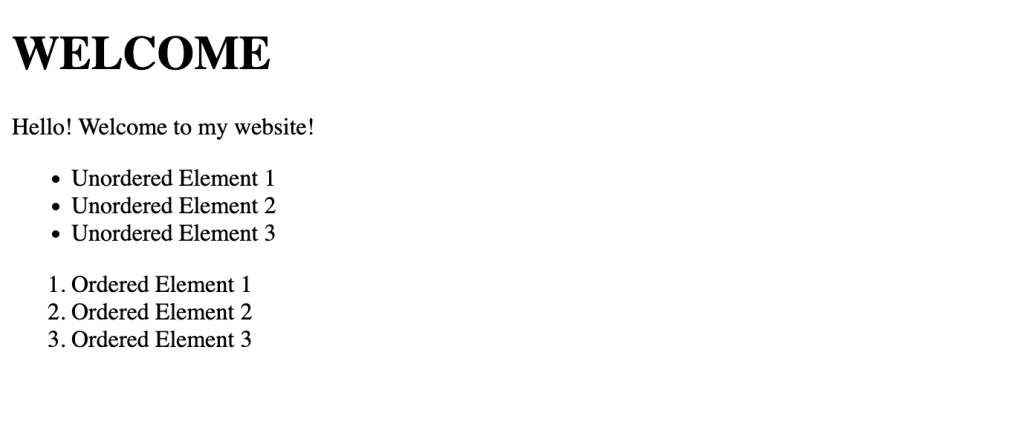
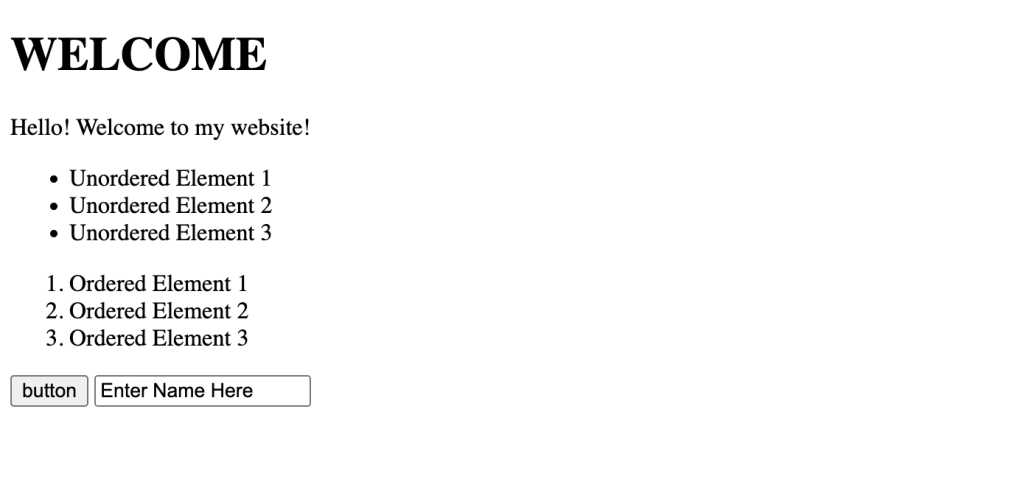
HTML can also be used to create various means of user input, such as buttons or text fields.
<!-- Document type declaration -->
<!DOCTYPE html>

<!-- html content -->
<html>

<!--html head -->
<head>

	<!--webpage title -->
	<title>Welcome</title>

</head>

<!--html body -->
<body>


	<!-- Welcome heading -->
	<h1>WELCOME</h1>

<!-- welcome text -->
	<p>Hello! Welcome to my website!</p>

<!--Unordered list -->
	<ul>
		<li>Unordered Element 1</li>
<li>Unordered Element 2</li>
<li>Unordered Element 3</li>
	</ul>

<!-- Ordered list -->
	<ol>
		<li>Ordered Element 1</li>
<li> Ordered Element 2</li>
<li> Ordered Element 3</li>
	</ol>

<!-- Button -->
	<input type=”button” value=”button”>

<!--Text input field -->
	<input type =”text” value=”Enter Name Here”>

</body>

</html>
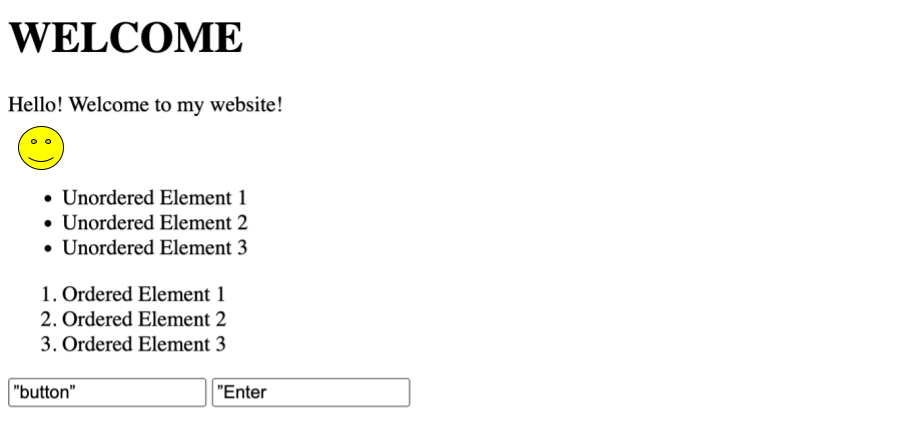
You can also add images to your HTML. Generally, when defining an image to be included, you also have to specify where the image is being stored on your device.
<!-- Document type declaration -->
<!DOCTYPE html>

<!-- html content -->
<html>

<!--html head -->
<head>

	<!--webpage title -->
	<title>Welcome</title>

</head>

<!--html body -->
<body>

	<!-- Welcome heading -->
	<h1>WELCOME</h1>

<!-- welcome text -->
	<p>Hello! Welcome to my website!</p>

	<!-- Happy image -->
	<img src=”smileyface.png” alt = “a smiley face”>

<!--Unordered list -->
	<ul>
		<li>Unordered Element 1</li>
<li>Unordered Element 2</li>
<li>Unordered Element 3</li>
	</ul>

<!-- Ordered list -->
	<ol>
		<li>Ordered Element 1</li>
<li> Ordered Element 2</li>
<li> Ordered Element 3</li>
	</ol>

<!-- Button -->
	<input type=”button” value=”button”>

<!--Text input field -->
	<input type =”text” value=”Enter Name Here”>

</body>

</html>
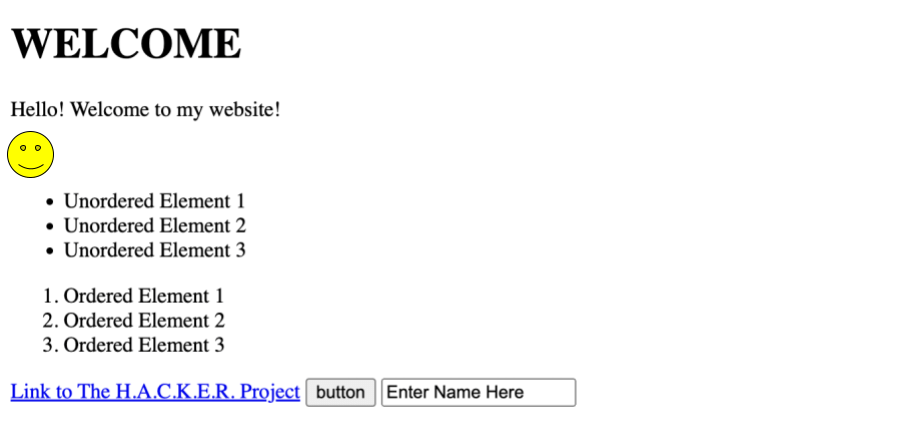
To incorporate a link, one must use the <a> tag.
<!-- Document type declaration -->
<!DOCTYPE html>

<!-- html content -->
<html>

<!--html head -->
<head>

	<!--webpage title -->
	<title>Welcome</title>

</head>

<!--html body -->
<body>

	<!-- Welcome heading -->
	<h1>WELCOME</h1>

<!-- welcome text -->
	<p>Hello! Welcome to my website!</p>

	<!-- Happy image -->
	<img src=”smileyface.png” alt = “a smiley face”>

<!--Unordered list -->
	<ul>
		<li>Unordered Element 1</li>
<li>Unordered Element 2</li>
<li>Unordered Element 3</li>
	</ul>

<!-- Ordered list -->
	<ol>
		<li>Ordered Element 1</li>
<li> Ordered Element 2</li>
<li> Ordered Element 3</li>
	</ol>

	<!--website link-->
	<a href=”www.thehackerproject.org”>Link to The H.A.C.K.E.R. Project</a>

<!-- Button -->
	<input type=”button” value=”button”>

<!--Text input field -->
	<input type =”text” value=”Enter Name Here”>

</body>

</html>
In order to link a CSS document to an HTML document (which will provide much more visual customization), it has to be declared in the <head> element. Just like with an image, you have to make sure you have the correct location of the CSS file.
<!-- Document type declaration -->
<!DOCTYPE html>

<!-- html content -->
<html>

<!--html head -->
<head>

	<!--CSS document -->
	<link rel=”stylesheet” href =”mystylesheet.css”>

	<!--webpage title -->
	<title>Welcome</title>

</head>

<!--html body -->
<body>

	<!-- Welcome heading -->
	<h1>WELCOME</h1>

<!-- welcome text -->
	<p>Hello! Welcome to my website!</p>

	<!-- Happy image -->
	<img src=”smileyface.png” alt = “a smiley face”>

<!--Unordered list -->
	<ul>
		<li>Unordered Element 1</li>
<li>Unordered Element 2</li>
<li>Unordered Element 3</li>
	</ul>

<!-- Ordered list -->
	<ol>
		<li>Ordered Element 1</li>
<li> Ordered Element 2</li>
<li> Ordered Element 3</li>
	</ol>

	<!--website link-->
	<a href=”www.thehackerproject.org”>Link to The H.A.C.K.E.R. Project</a>

<!-- Button -->
	<input type=”button” value=”button”>

<!--Text input field -->
	<input type =”text” value=”Enter Name Here”>

</body>

</html>
Finally, if you want to link a JavaScript file to your HTML document to add more functionality to your website, you have to include a <script> element in your <head> element. Just like with an image and CSS file, you have to make sure you have the correct location of the JavaScript file.
<!-- Document type declaration -->
<!DOCTYPE html>

<!-- html content -->
<html>

<!--html head -->
<head>

	<!--CSS document -->
	<link rel=”stylesheet” href =”mystylesheet.css”>

	<!--JavaScript file -->
<script src=”myjavascriptfile.js”></script>

	<!--webpage title -->
	<title>Welcome</title>

</head>

<!--html body -->
<body>

	<!-- Welcome heading -->
	<h1>WELCOME</h1>

<!-- welcome text -->
	<p>Hello! Welcome to my website!</p>

	<!-- Happy image -->
	<img src=”smileyface.png” alt = “a smiley face”>

<!--Unordered list -->
	<ul>
		<li>Unordered Element 1</li>
<li>Unordered Element 2</li>
<li>Unordered Element 3</li>
	</ul>

<!-- Ordered list -->
	<ol>
		<li>Ordered Element 1</li>
<li> Ordered Element 2</li>
<li> Ordered Element 3</li>
	</ol>

	<!--website link-->
	<a href=”www.thehackerproject.org”>Link to The H.A.C.K.E.R. Project</a>

<!-- Button -->
	<input type=”button” value=”button”>

<!--Text input field -->
	<input type =”text” value=”Enter Name Here”>

</body>

</html>
If you are interested in learning more on how to write HTML code, be sure to check out the following playlist by W3Schools, which covers many of the basics of HTML:
Resources & Further Reading
Hemmendinger, David . “HTML | Computer Science.” Encyclopædia Britannica, 2019, www.britannica.com/technology/HTML.
JavaTpoint. “What Is HTML – JavaTpoint.” Www.javatpoint.com, JavaTpoint, 2011, www.javatpoint.com/what-is-html.
W3C Authors. “History.” W3C, www.w3.org/about/history/.
W3Schools. “Introduction to HTML.” W3schools.com, Refsnes Data, 2022, www.w3schools.com/html/html_intro.asp.



 The H.A.C.K.E.R. Project
Leave a comment