

No matter if you use a computer in the office, at your home, at school, or at a café, there is bound to be a time where you need to leave your desk or seat and, by extension, your computer. Perhaps you may need to grab a drink from the refrigerator, or run some papers over to your coworker, or even just use the restroom. Many people tend to simply get up and go do these things without a second thought; this, however, can pose a great risk to the cybersecurity of your device. In those few moments that you leave your computer or laptop unattended, someone could install something malicious on your device, navigate to harmful or inappropriate websites, or even simply pull a silly prank, such as making your mouse cursor speed extremely slow.
Fortunately, one of the best ways to maintain the security of your device is also extremely simple: lock your computer/laptop before leaving it. By locking your device, your computer will stay powered on, but you will have to re-enter your password before you can use it again. This can stop a hacker or prankster in their tracks and make it harder for someone to mess with your device.
Locking Your Device on Windows
If your device runs Windows, the instructions are very simple. Simply press the Windows Key and the “L” key to lock your device and take you to the lock screen.
If you are not comfortable using the keyboard shortcut to lock your device, you can also do it through the start menu. First, click on the Windows logo on the taskbar on the bottom of your screen. Depending on your Windows version and on your user preferences, it may be in the center of the screen (as seen in the image below) or it may be on the left of your screen.

This will bring up the Start menu. Then, click on your profile (this will be your profile picture and your name). This will bring up a new menu with a few options. One of the options will be “Lock”. Click on this option to lock your device, taking you back to the lock screen. The below video, created by Acer, walks through this method of locking your device.
Locking Your Device on MacOS
If your device is an Apple product, the instructions are just as simple. If you press the Control key, the Command key, and the “Q” key at the same time, you will also be taken back to the lockscreen.
If you are not comfortable using the keyboard shortcut to lock your device, you can also do it through the start menu. First, click on the Apple icon on the taskbar at the top left of your screen, as seen in the image below.

A menu of various options- including the shutdown option- will appear. Near the bottom of this list will be an option that says “Lock Screen”, as seen in the image below.
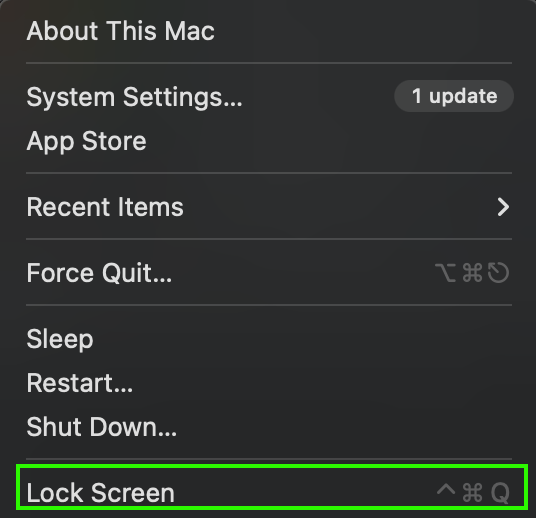
Clicking that option will lock your device, taking you back to the lock screen.



 The H.A.C.K.E.R. Project
Leave a comment