Looking for some extra storage space on your PC, but not sure what to delete? If your device is running Windows, try using the Disk Cleanup tool. Disk Cleanup is a great, built-in Windows utility tool that can help to free up storage space on your PC. It does this by checking for and deleting temporary files, including files left over from updates.
Many applications will create temporary files when running, but sometimes these will not get cleaned up like they are supposed to. As a result, they can begin building up, eventually taking up a noticeable amount of space. The Disk Cleanup Utility goes through these locations and cleans them out, recovering space (and, in some cases, helping to boost device speed).
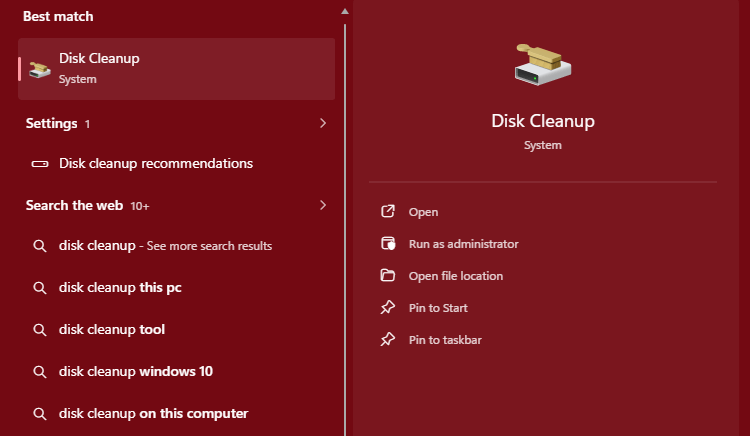
Simply search for this tool in the Windows search bar on the task bar or by pressing the Windows key and typing in the words “Disk Cleanup”.

Once the application appears- the icon will look like a server or disk being brushed off- click the “Open” button to open it.
It will then take some time to calculate what all can be cleaned, before bringing up the options menu. Here, you can select which temporary file locations you want to clear out and also see how much disk space will be recovered after cleanup.
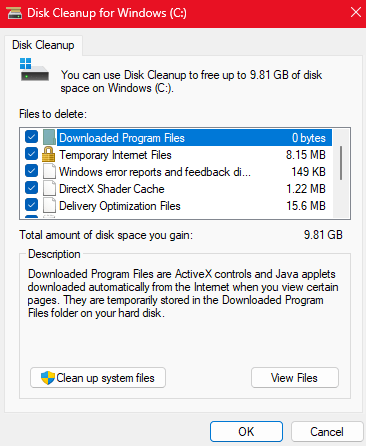
Once you select all of the files you want deleted, simply click “OK” and let the tool run. In the above example, the tool will reclaim 9.81gb of space!
There is an additional option, the “Clean up system files” option, which permits Disk Cleanup to scan deeper in the system and find additional files that can be deleted. You will need administrator permissions to run this advanced mode. You may need to contact your company’s IT team if you are trying to run this tool on a company-issued device.
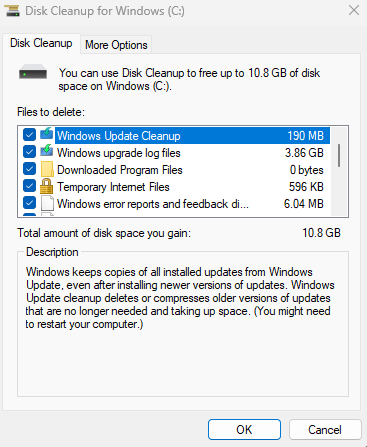
Once you select all of the files you want deleted, simply click “OK” and let the tool run. In the above example, the tool will reclaim 10.8gb of space!
Depending on how many files Disk Cleanup has to delete, it may take some time to process. Once the tool has finished, it is always a good idea to restart the computer in order to give it a fresh start!



 The H.A.C.K.E.R. Project
Leave a comment